

Coming soon
Put your image into one of our backdrops so it looks like one perfectly harmonized photo. Then download it or order a print.
3 credits per blend
Loading your Studio…
Sign in with your Ashe Design account to use Ashe Photo Studio.
Sign inEach tool uses credits. Adjusting and downloading are always free.
Put your image into one of our backdrops so it looks like one perfectly harmonized photo. Then download it or order a print.
3 credits per blend
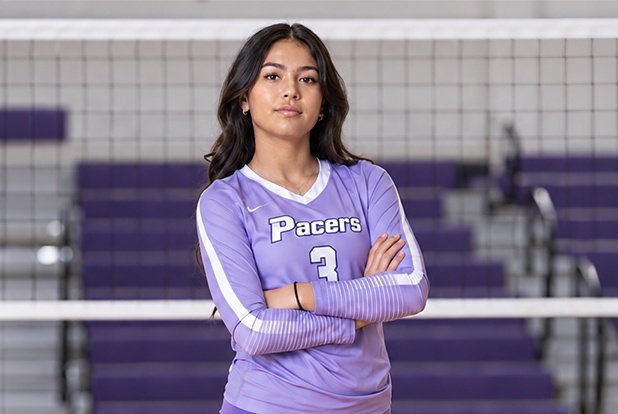
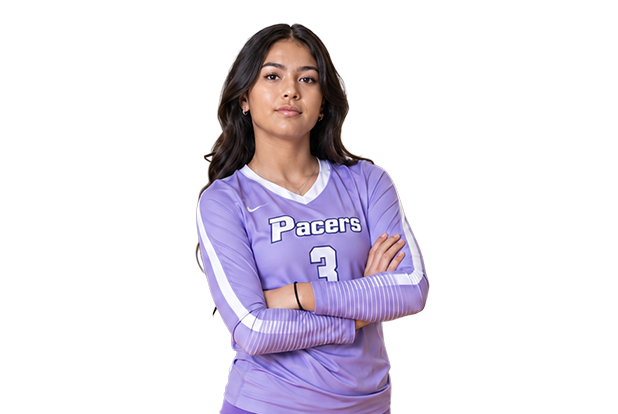
Cut out people, pets, or products. Get a clean see-through PNG.
Clean see-through PNG
1 credit per photo

Make your photo 2×, 4×, 6×, or 8× bigger, ready to print. Best for sharp photos.
2× to 8× bigger, best for sharp photos
2 credits per photo
Coming soon
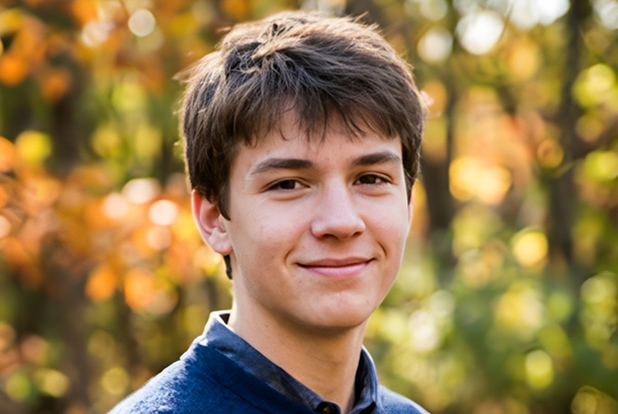
Rescue a blurry, old, or faded photo. Faces and details are sharpened.
Rescue blurry or old photos
2 credits per photo
Coming soon
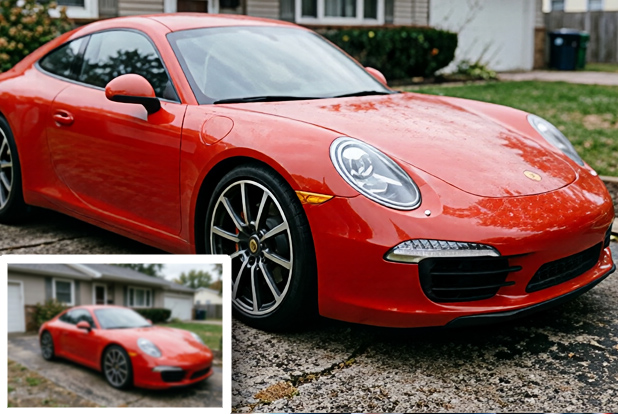
Fix a blurry photo and make it print-ready in one step.
Fix blur and make it print-ready
4 credits per photo
Coming soonFiles are kept for 30 days. Download the ones you want to keep.
JPG, PNG, WebP, TIFF, or iPhone (HEIC) photos, full size, up to 100 MB. 1 credit per photo. A failed photo never uses a credit.
Lots of photos? Drop a whole folder (up to 200 photos) and download them all as a ZIP.
Using Photoshop? Get the plugin to remove backgrounds right inside Photoshop, with the same credits.
Drag photos or a whole folder here, or
Working…
Photoshop plugin
Select a layer and click once. The plugin adds a copy of your layer with an editable layer mask, so you can fine-tune the edges. It uses the same credits as this page.
Requires Photoshop with the Adobe Creative Cloud app. Works on Mac and Windows computers.
Your plugin key
Paste this into the plugin once. Keep it private: anyone with your key can use your credits.
Yes. The remove.bg plugin for Photoshop won't be available after December 1, 2026. Our plugin does the same job: select a layer and click once. It adds an editable layer mask so your original photo is never changed and you have complete editing control.
Photographers, designers, and anyone who cuts people or products out of photos. It's built for Photoshop users who want clean cutouts for posters, banners, and composites without leaving Photoshop.
One credit removes the background from one image. Your credits are shared across Photo Studio by Ashe Design, so you can use them here, in the Photoshop plugin, and in every other Photo Studio tool.
Yes. New customers get 3 free credits to try any Photo Studio tool, including Remove Background. We ask for a card to prevent abuse, but you won't be charged. One free trial per account.
JPG, PNG, WebP, TIFF, and iPhone (HEIC) photos, up to 100 MB. Your photo comes back at its full original size.
A PNG with a see-through background, ready to drop into your designs. In Photoshop, the plugin adds a copy of your layer with an editable layer mask instead.
No. Credits are only used when your result comes back successfully. If a blend or photo can't be finished, its credits are returned to your account automatically.
Download and install the plugin, then copy your plugin key from this page and paste it in. In Photoshop, go to Plugins → Ashe Background Remover → Background Remover, select a layer, and click once. The plugin adds a copy of the layer with an editable layer mask. It uses the same credits as this page.
Yes. Install it on each computer and paste the same key. Every computer uses the same credits.
No. Photo Studio by Ashe Design, including Remove Background and the Photoshop plugin, is separate from the All Access membership.
On the Photo Studio Credits page or in My Account. That page also has plans, add-on credits, and answers about billing. See our refund policy.
Drag a photo here, or
Getting your photo ready…
Starting…
You can leave this page. Your photo keeps going, and it will be waiting in My Photos.
Loading your photo…
Slide to compare before and after.
Photos are deleted after 30 days. Download the ones you want to keep.
Step 1: Choose a backdrop.
Step 2: Add your photo. JPG, PNG, or iPhone (HEIC) photos of a person, a group, or a pet.
Drag a photo here, or
Getting your photo ready…
Next, you'll place your photo on the backdrop. Getting it ready is free; the blend itself uses credits.
Step 3: Drag your photo to move it. Drag a corner (or pinch on a phone) to resize it. Backdrop:
Loading…
It snaps to the middle and the bottom edge when it's close. Anything outside the backdrop is cut off.
The faint "Ashe Photo Studio" marks are only on this preview. Your finished blend won't have them.
Photo Studio matches the light and shadows to the backdrop. It keeps your photo where you put it and doesn't add anything to it. A blend takes about 1 to 3 minutes. If it doesn't work, your credits are refunded automatically.
Backdrop:
Starting…
You can leave this page or start another blend. Your blend keeps going, and it will be waiting in My Blends.
Loading the full-size picture…
Loading your picture…
Dashed line: the edge a frame usually covers (¼ inch).
Adjusting, downloading, and sharing are free. Your settings are saved for this blend. Share sends a photo sized for social media (1080 × 1350, or 1080 × 864 for horizontal pictures).
Blends are deleted after 30 days. Download the ones you want to keep.
Loading your picture…
You pay and choose shipping in the Ashe Design checkout. Your print is made from the full-size picture at 300 dpi, with your adjustments.